Managed Terraform state with CI/CD pipeline by GitLab CI
GitLab is a powerful tool that allows you to manage different stages of DevOps tasks in a single platform, including the management of your…
First published on Medium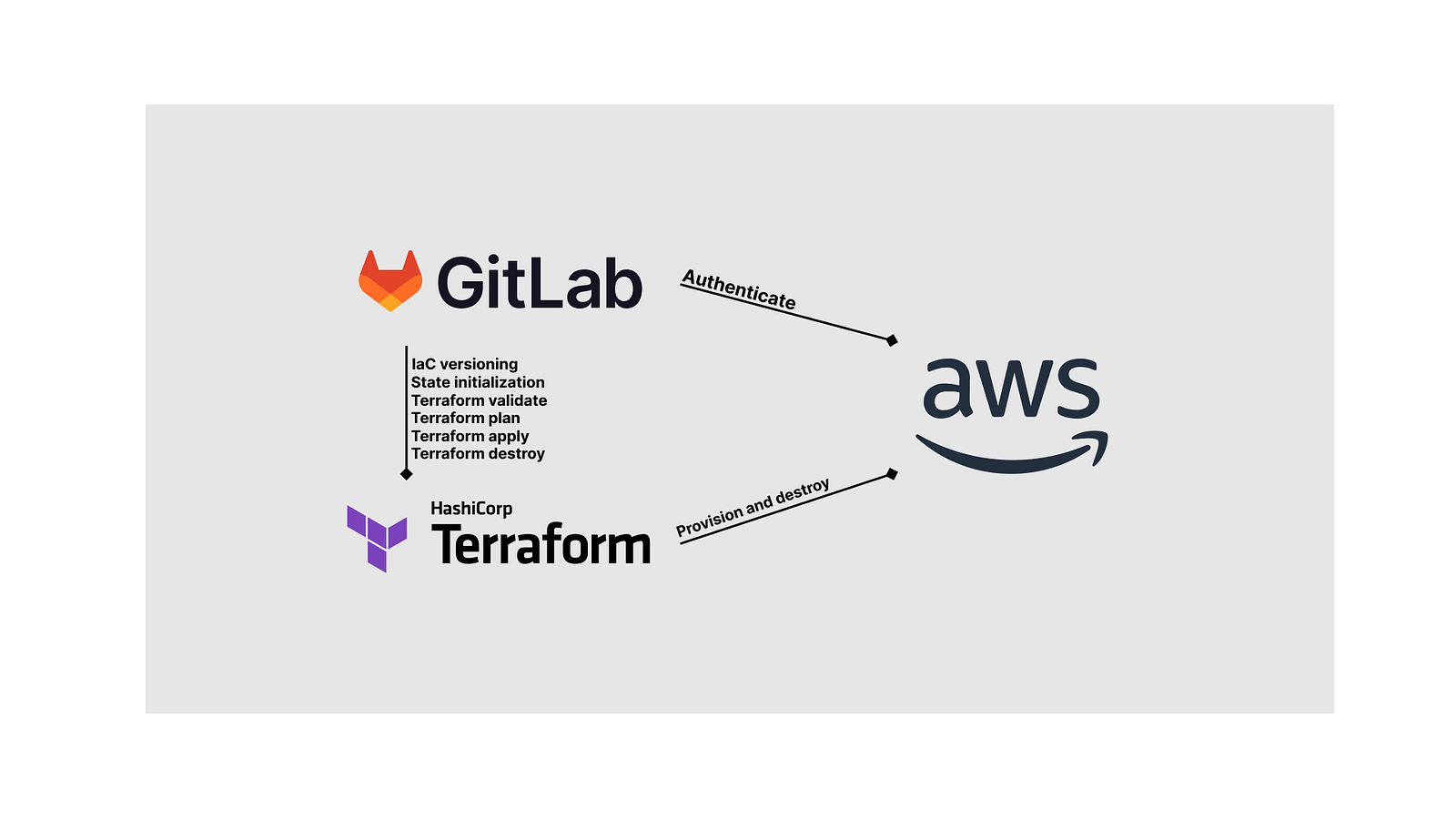
GitLab is a powerful tool that allows you to manage different stages of DevOps tasks in a single platform, including the management of your cloud infrastructure.
Today, this article will show you how to use GitLab CI to manage the provision of AWS resources with Terraform, from initializing the state file to applying the Terraform plan and with a option to destroy them.
Prerequisites
- An AWS Account (Open new account)
- A GitLab SaaS account (Open new account) or self-hosted GitLab server
As we will create resources on AWS, you should expect there maybe a small charge following the steps. But if you follow the steps until the end to destroy all created resources, the cost should be few dollars at most.
This example has done on a Homelab GitLab EE server(v16.7.3-ee) with self-hosted GitLab Runners(v16.7.0).
Let’s get started!
Generate IAM Access Key Pair
As Terraform needs to authenticate with AWS, we will need a pair of IAM Access Key.
- Go to IAM on AWS console
- Click
Usersfrom the menu at the left - Choose the user with the permission to create all the necessary resources
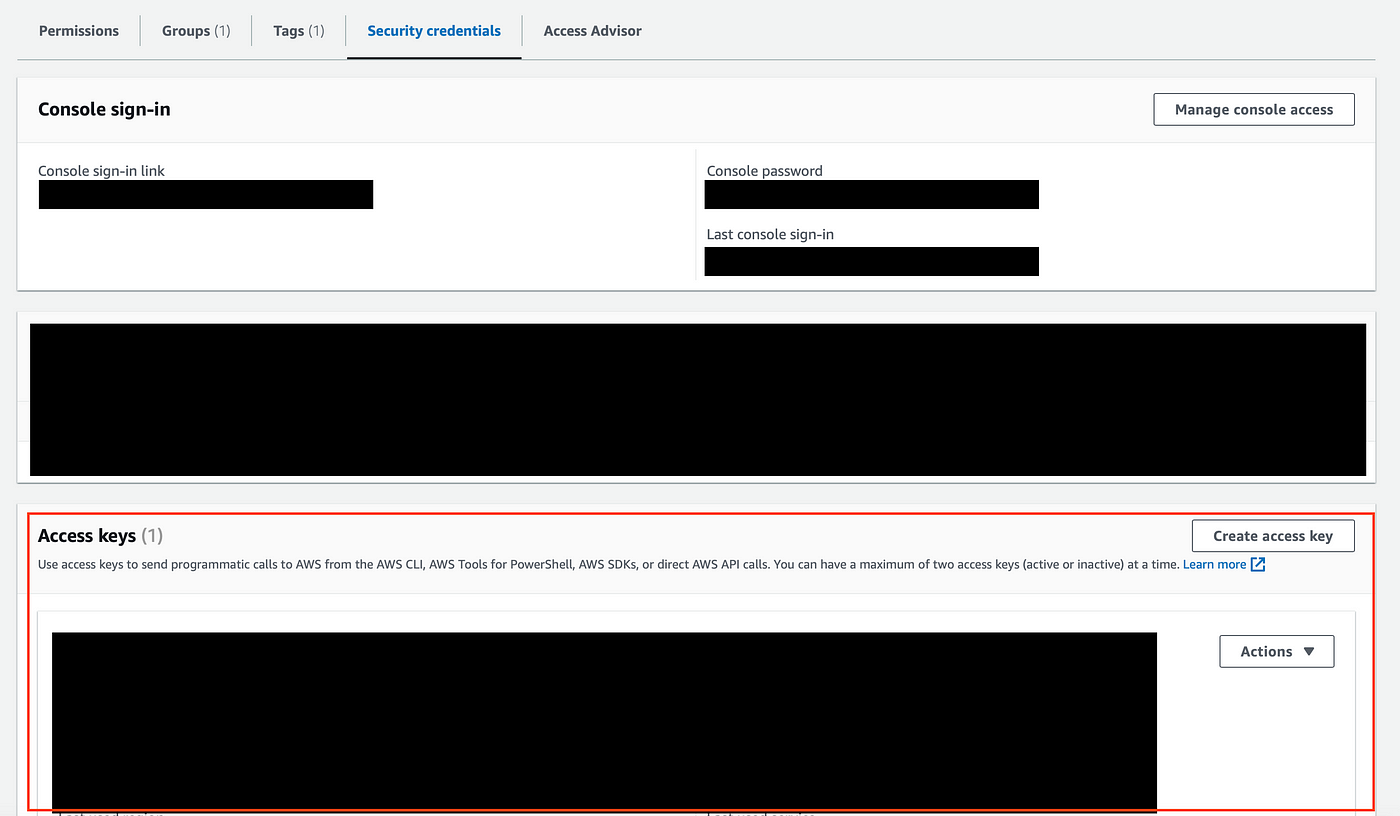
- Choose
Security credentialsfrom the tabs - Click the
Create access keybutton and follow the instructions to save your key pair safely
Prepare a GitLab project
We need a new GitLab project to store the Terraform files, GitLab CI definition file, AWS credentials, and the GitLab-managed Terraform state file will also store under this project.
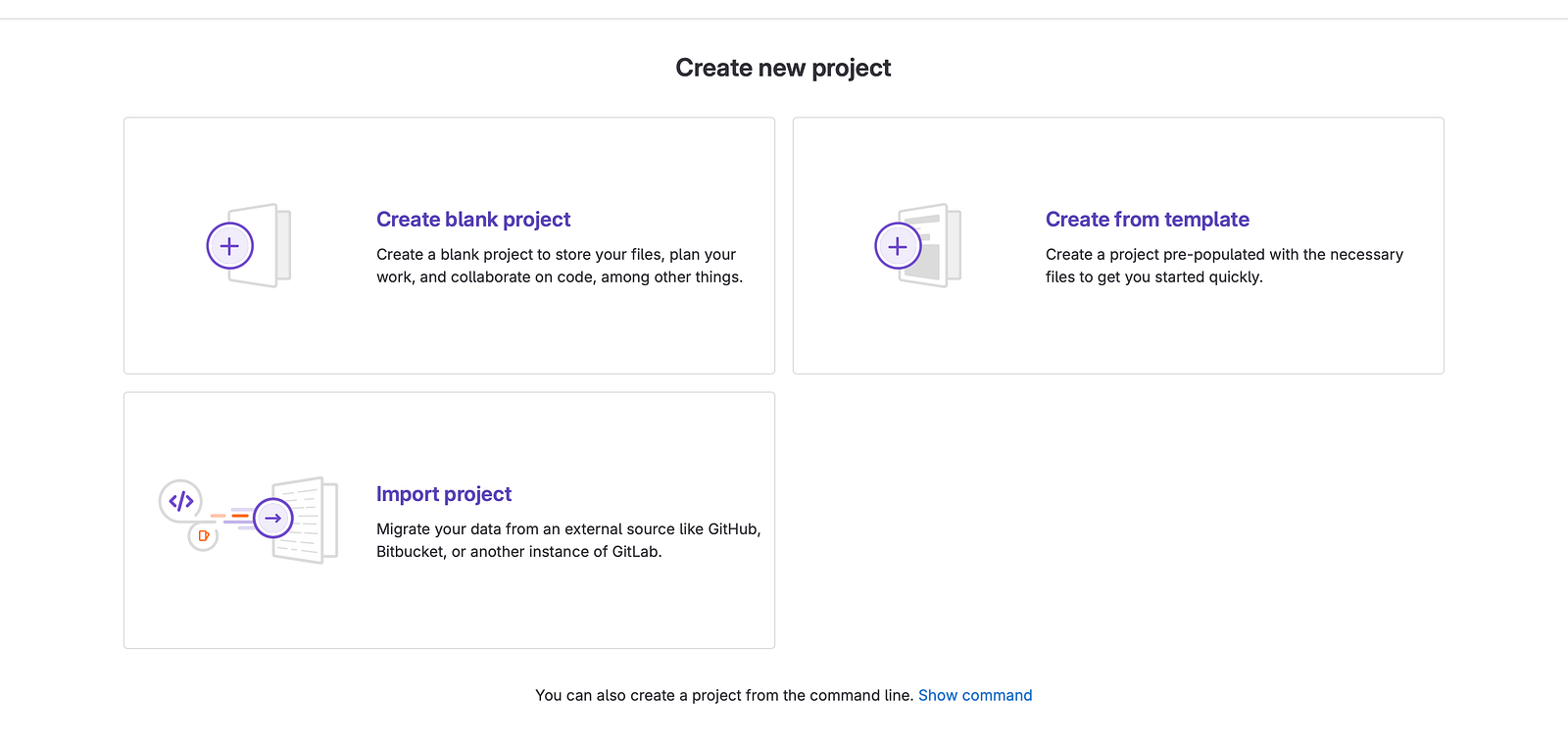
Choose Create blank project
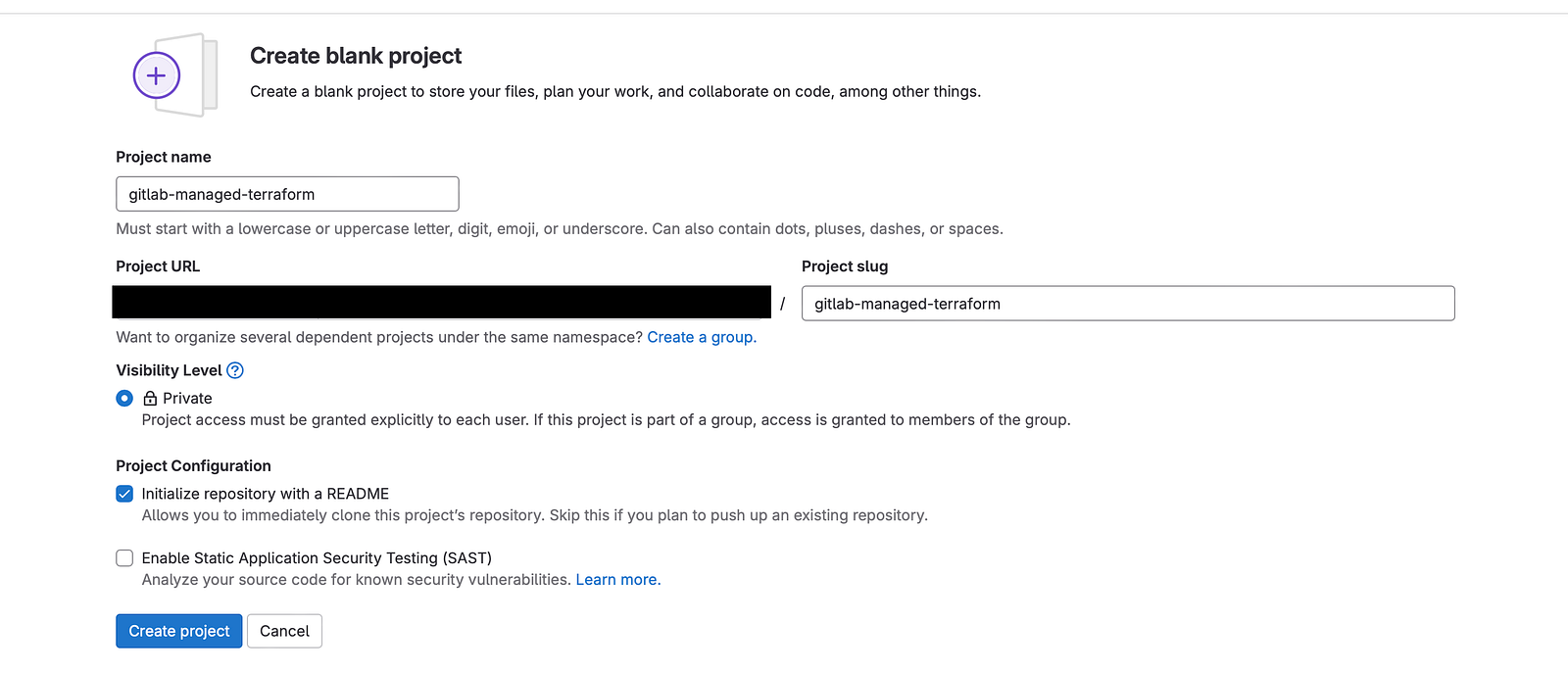
Fill the Project name and create the project
Create required Terraform files
You can refer to my demo repository published on GitHub or follow steps below.
GitHub - yukccy/gitlab-managed-terraform: Demo repository for GitLab managed Terraform stateDemo repository for GitLab managed Terraform state - GitHub - yukccy/gitlab-managed-terraform: Demo repository for… github.commain.tf
provider "aws" {
  region = var.aws_region
}

terraform {
  required_providers {
    aws = {
      source  = "hashicorp/aws"
      version = "~> 5.23.1"
    }
  }
}
backend.tf
terraform {
  backend "http" {
  }
}
network.tf
locals {
    azs = ["${var.aws_region}a", "${var.aws_region}b", "${var.aws_region}c"]
    num_of_az = length(local.azs)
    subnet_cidr = cidrsubnets(var.vpc_cidr, var.public_subnets_cidr_root_newbits, var.private_subnets_cidr_root_newbits)
}

locals {
  public_subnets_list_cidr = cidrsubnets(local.subnet_cidr[0], [for i in range(local.num_of_az): var.public_subnets_cidr_sub_newbits]...)
  private_subnets_list_cidr = cidrsubnets(local.subnet_cidr[1], [for i in range(local.num_of_az): var.private_subnets_cidr_sub_newbits]...)
}

module "vpc" {
  source = "terraform-aws-modules/vpc/aws"

  name = "${var.name_prefix}-vpc"
  cidr = var.vpc_cidr

  azs = local.azs
  public_subnets  = local.public_subnets_list_cidr
  private_subnets = local.private_subnets_list_cidr

  public_subnet_tags = {
    "kubernetes.io/role/elb" = 1
  }

  private_subnet_tags = {
    "kubernetes.io/role/internal-elb" = 1
  }

  enable_nat_gateway = true
  single_nat_gateway = true
  enable_vpn_gateway = true
  create_igw = true
  map_public_ip_on_launch = true
}
variables.tf
######################################################################
## Core
variable "name_prefix" {
  type = string
  default = "terraform-state-study"
}

variable "aws_region" {
  type = string
  default = "us-east-1"
}

variable "env_name" {
  type = string
  default = "study"
}

variable "provisioner" {
  type = string
  default = "terraform"
}

######################################################################
## Network
variable "vpc_cidr" {
  type = string
  default = "10.0.0.0/16"
}

variable "public_subnets_cidr_root_newbits" {
  type = number
  default = 4
}

variable "public_subnets_cidr_sub_newbits" {
  type = number
  default = 4
}

variable "private_subnets_cidr_root_newbits" {
  type = number
  default = 4
}

variable "private_subnets_cidr_sub_newbits" {
  type = number
  default = 4
}
Setup GitLab CI/CD
We need a GitLab CI/CD definition file to define the stages and steps of provisioning.
.gitlab-ci.yml
---
variables:
  STATE_NAME: "tf_state" # Name of the TF state
  GITLAB_HOSTNAME: "<Your GitLab Hostname>" # For example, gitlab.com
  PROJECT_ID: "<Your Project ID>" # For example, 33
  ADDRESS: "https://${GITLAB_HOSTNAME}/api/v4/projects/${PROJECT_ID}/terraform/state/${STATE_NAME}" # Address of the TF State

# Stages of the pipeline
stages:
  - validate
  - plan
  - apply
  - destroy

# Image for stages
image:
  name: hashicorp/terraform:light
  entrypoint: [""]

# Define the step of terraform init
before_script:
  - terraform --version
  - export GITLAB_ACCESS_TOKEN=$TOKEN # Your GitLab PAT and we will store in project variables
  - export GITLAB_USERNAME=$USERNAME # Your GitLab username and we will store in project variables
  - terraform init -reconfigure
    -backend-config="address=${ADDRESS}"
    -backend-config="lock_address=${ADDRESS}/lock" -backend-config="unlock_address=${ADDRESS}/lock" -backend-config="username=$GITLAB_USERNAME" -backend-config="password=$GITLAB_ACCESS_TOKEN"
    -backend-config="lock_method=POST"
    -backend-config="unlock_method=DELETE"
    -backend-config="retry_wait_min=5"

# Terraform validate
validate:
  stage: validate
  script:
    - terraform validate

# Terraform plan
plan:
  stage: plan
  script:
    - terraform plan
  dependencies:
    - validate

# Terraform apply
apply:
  stage: apply
  script:
    - terraform apply  -auto-approve
  dependencies:
    - plan

# Terraform destroy
destroy:
  stage: destroy
  script:
    - terraform destroy  -auto-approve
  dependencies:
    - plan
    - apply
  when: manual
- Replace <Your GitLab Hostname> with the GitLab hostname. If you are using GitLab SaaS, it will be gitlab.com.
- Replace <Your Project ID> with the project ID from the project we have just created
We also need to setup the project variables for sensitive information.
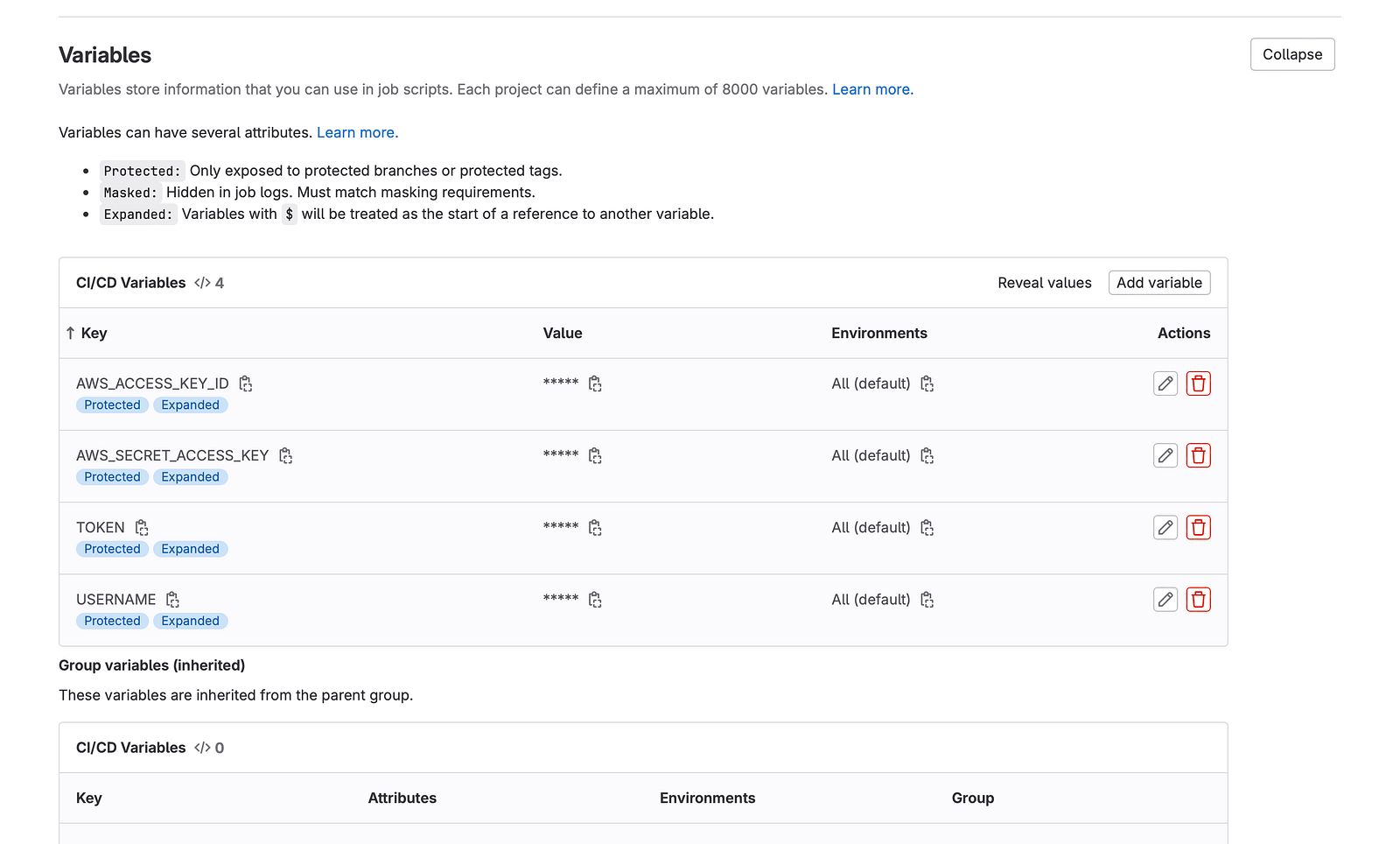
- Add two variables named
AWS_ACCESS_KEY_IDandAWS_SECRET_ACCESS_KEYand store the AWS key pair we have generated earlier in this article - Add a new variable named
TOKENand store the Personal Access Token with all API access of your GitLab account - Add a new variable named
USERNAMEand store your GitLab username
>>> Push all the files GitLab to trigger the CI/CD pipeline
Result
Check the Pipeline Dashboard under Build>Pipeline at the left menu

Newly triggered pipeline
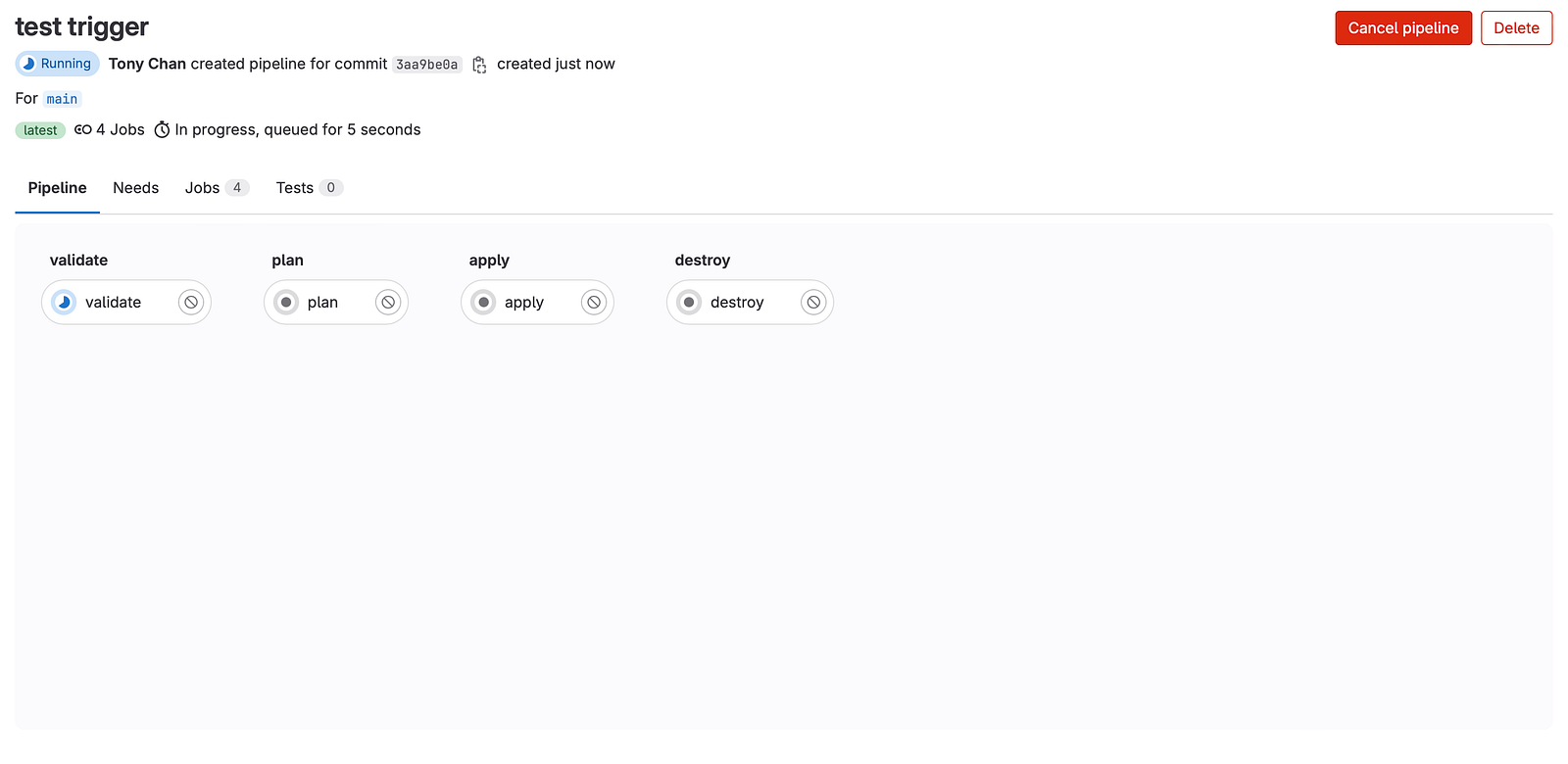
Running pipeline with 4 stages
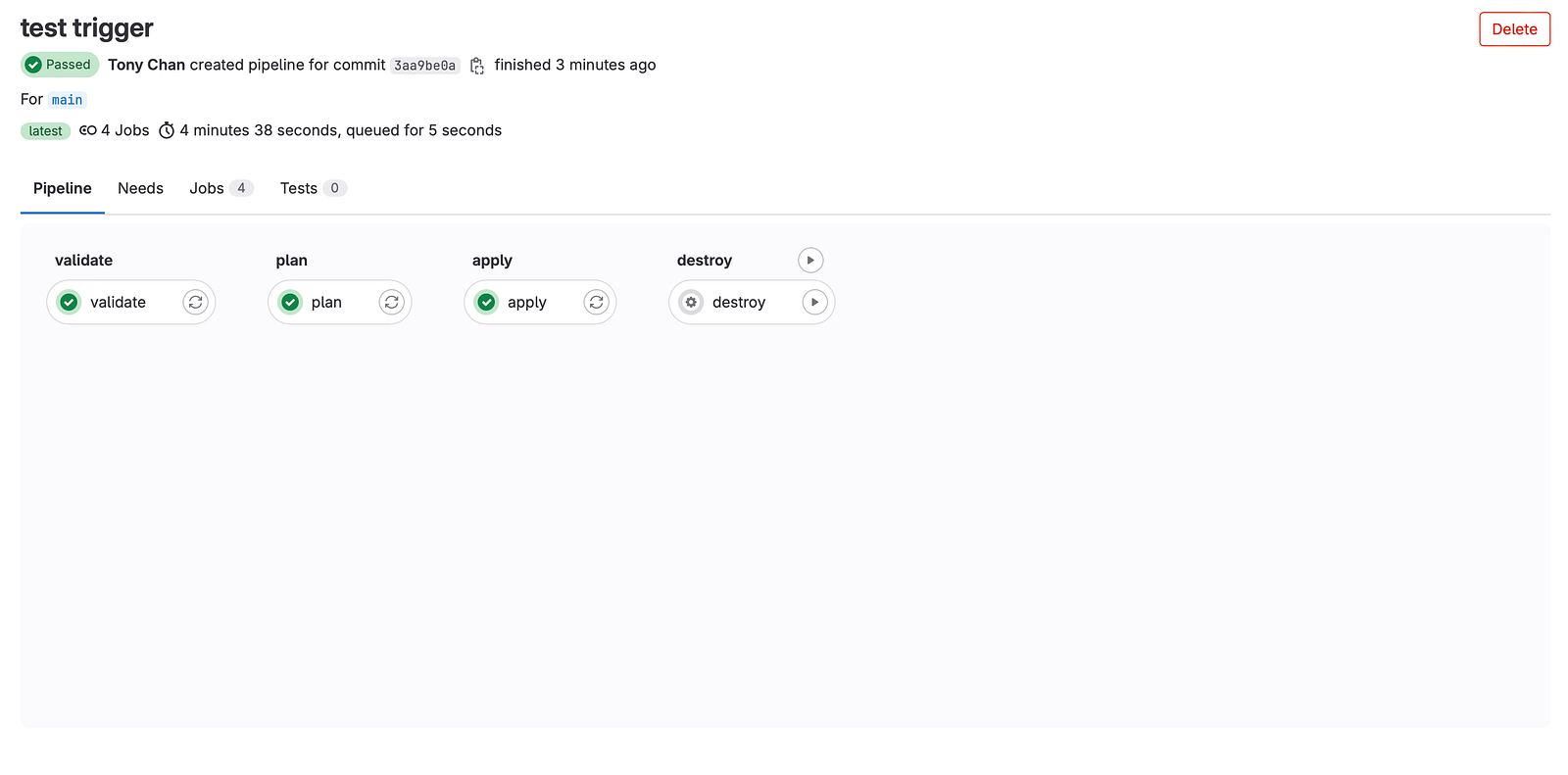
Pipeline has passed except the destroy job
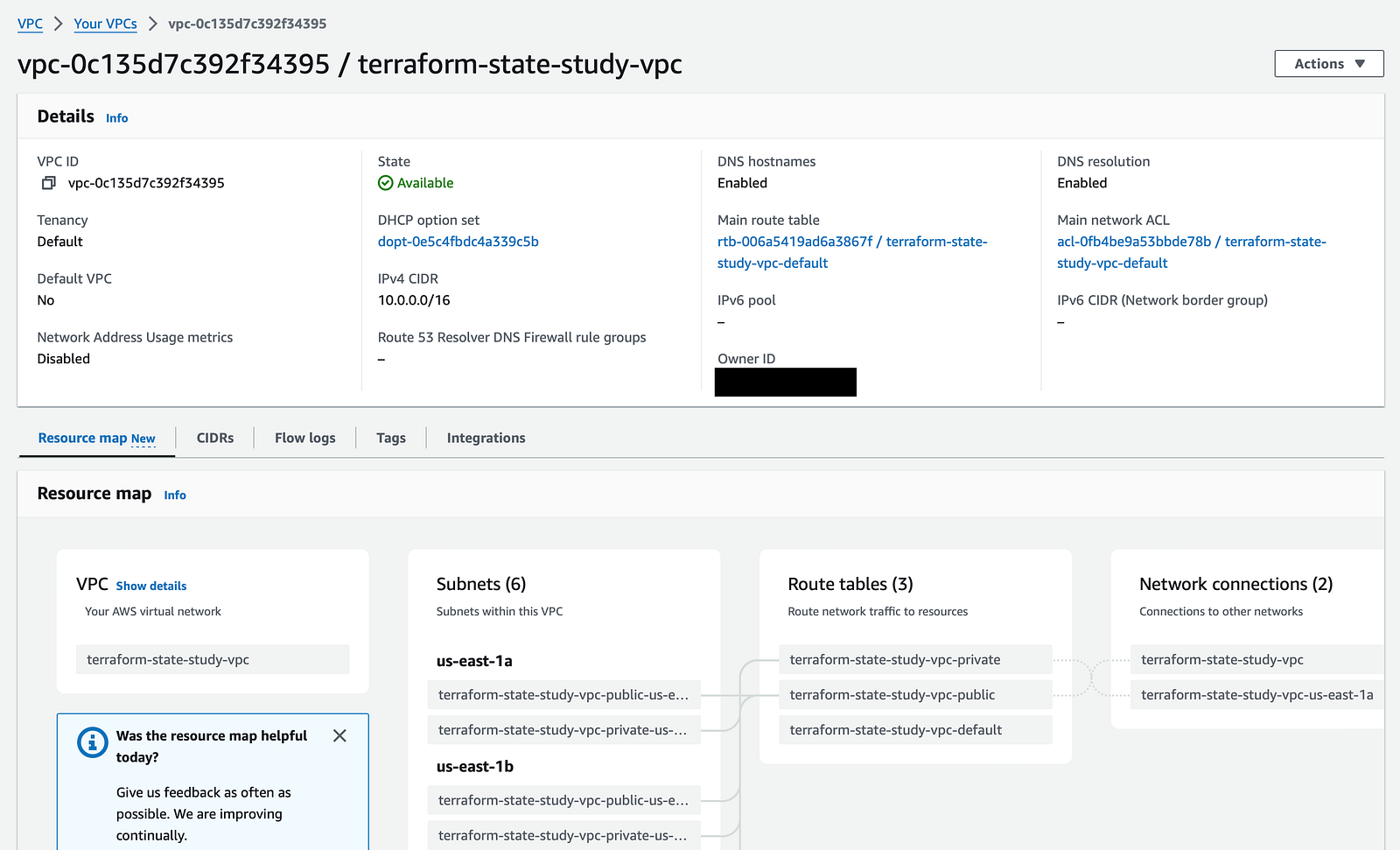
VPC resources has created on AWS
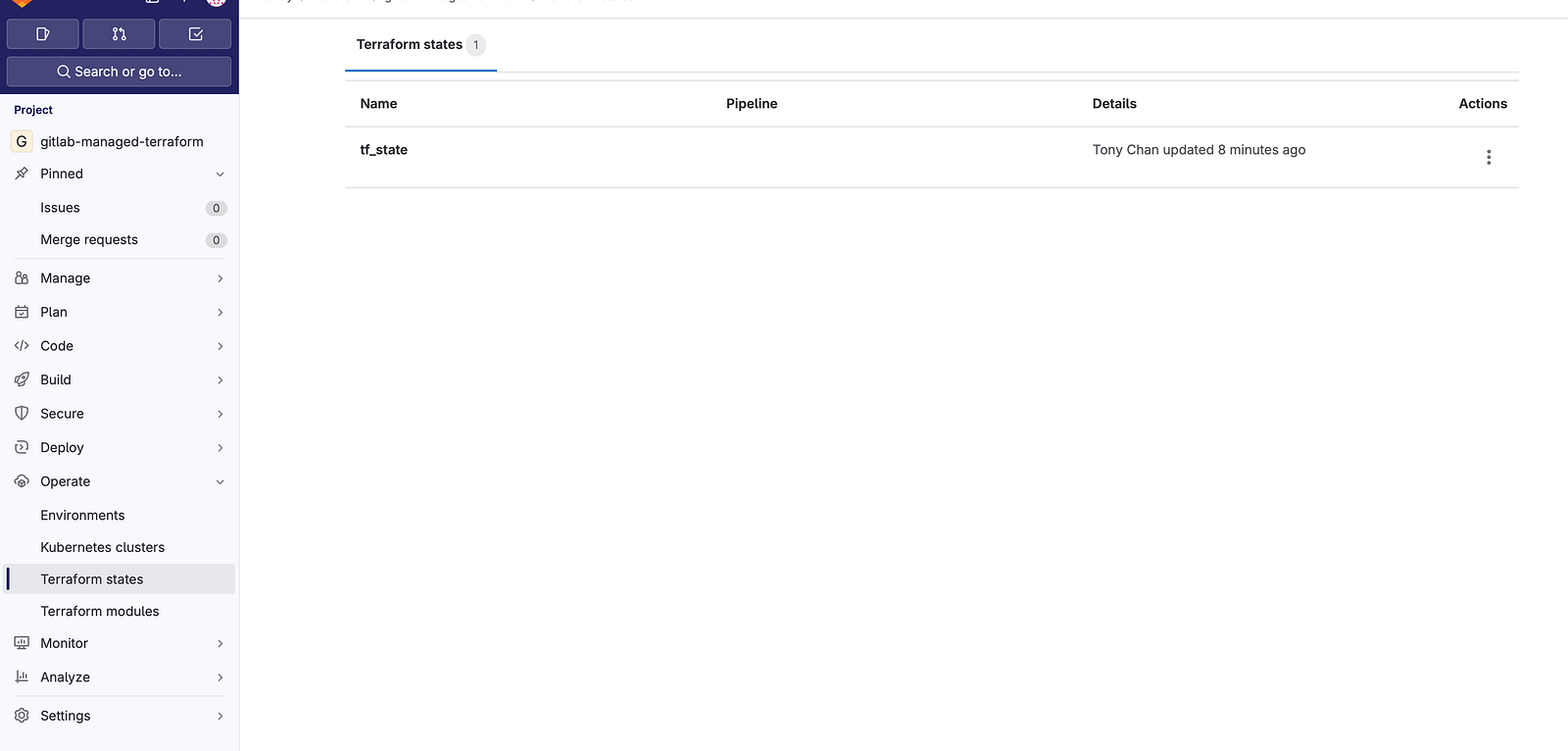
Terraform state file managed by GitLab
After manual triggering the final destroy job, verify the created resources on AWS and see if they have been deleted.
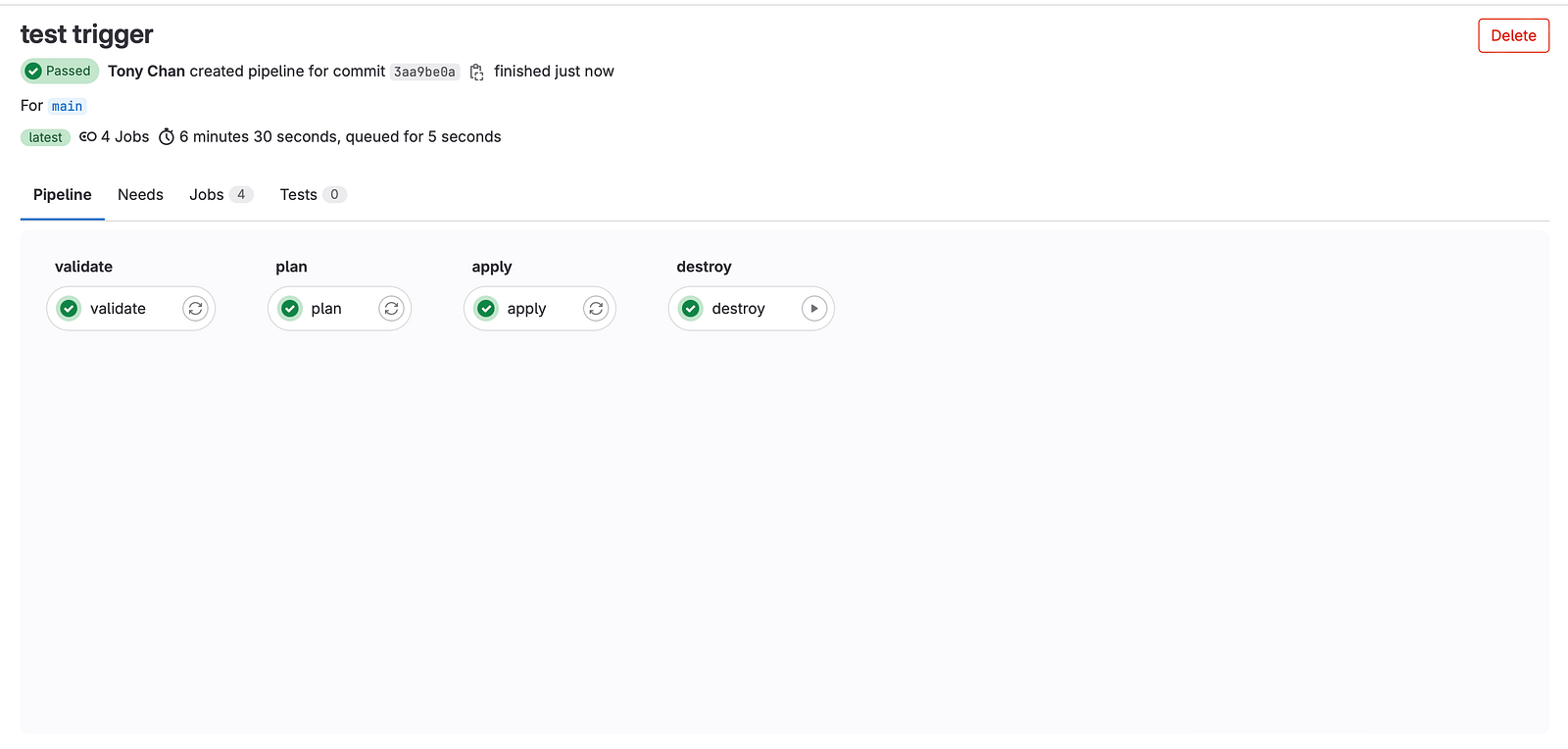
Destroy job has passed

VPC resources has been deleted
Post execution
As mentioned at the beginning, if you follow the steps, all the resources should be deleted already. But it is still a good habit to verify on AWS console to prevent unexpected charge.